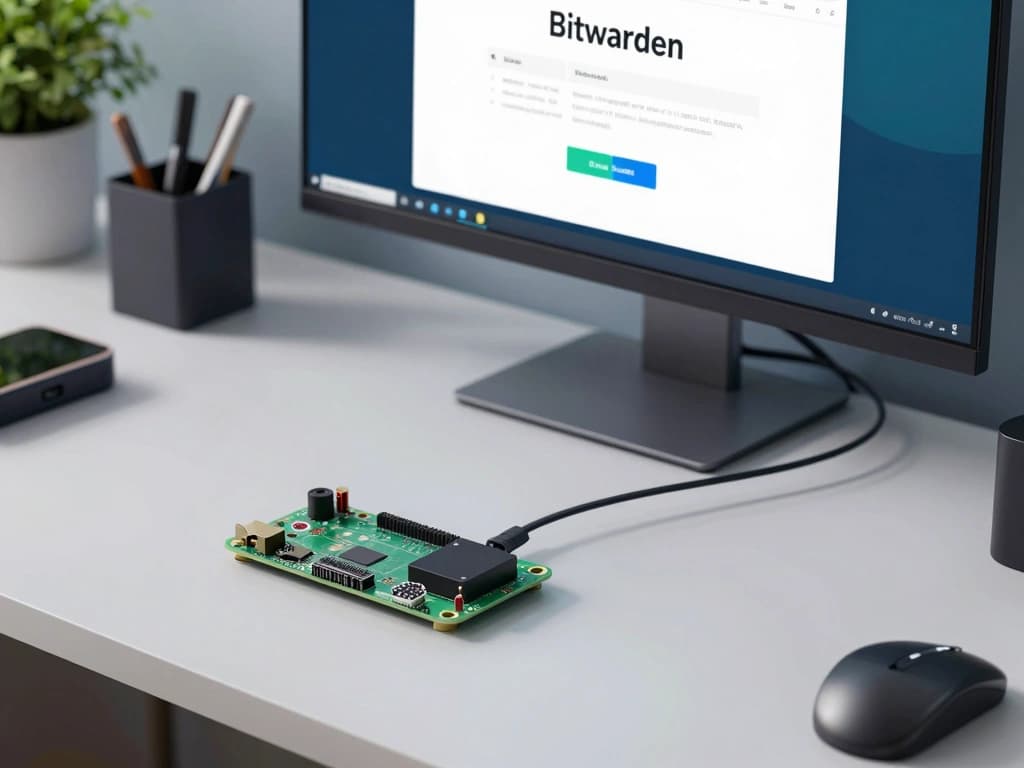
Learn how to self-host Bitwarden on a Raspberry Pi with our step-by-step guide. Secure your passwords effortlessly and enhance your tech skills today!
Introduction to Bitwarden and Self-Hosting
What is Bitwarden?
Bitwarden is a popular open-source password manager that allows users to securely store and manage their passwords, notes, and other sensitive information. It provides a user-friendly interface and robust security features, such as end-to-end encryption, allowing users to access their credentials across various devices. Bitwarden supports various platforms, including web browsers, mobile applications, and desktop clients, making it a versatile choice for password management.
Benefits of Self-Hosting Bitwarden
Self-hosting Bitwarden offers numerous advantages that enhance both security and control over your data:
- Data Privacy: By self-hosting, you maintain complete control over your data, ensuring that it is not stored on third-party servers.
- Customization: You can tailor the Bitwarden setup to meet your specific needs and preferences, including custom domains and additional features.
- Cost Efficiency: If you have the hardware already, self-hosting can be more economical than subscribing to premium services.
- Learning Opportunity: Setting up and managing your own server can be a great way to improve your technical skills and understanding of server management.
Why Use a Raspberry Pi for Self-Hosting?
The Raspberry Pi is an ideal candidate for self-hosting applications like Bitwarden due to its compact size, affordability, and low power consumption. Here are some reasons to consider using a Raspberry Pi:
- Cost-Effective: A Raspberry Pi costs significantly less than traditional servers, making it accessible for personal projects.
- Low Power Usage: The Raspberry Pi consumes minimal energy, allowing you to run it continuously without a substantial increase in electricity bills.
- Simplicity: The Raspberry Pi is beginner-friendly, with a vast community and numerous resources available for troubleshooting and support.
- Portability: Its small form factor means you can easily set it up in any space, making it convenient for home use.
Preparing Your Raspberry Pi for Bitwarden
Choosing the Right Raspberry Pi Model
While any Raspberry Pi model can technically run Bitwarden, some models are better suited for the task. The Raspberry Pi 4 Model B is highly recommended due to its improved processing power and RAM options. Specifically, you should consider:
- RAM: Opt for the 4GB or 8GB variant for better performance, especially if you plan to access Bitwarden from multiple devices simultaneously.
- Ethernet Connection: For reliability and speed, connecting via Ethernet instead of Wi-Fi is often preferable.
Installing the Operating System
The first step in preparing your Raspberry Pi is to install an operating system. The recommended OS for self-hosting applications is Raspberry Pi OS Lite (headless version) for its lightweight nature. Here's how to do it:
- Download the Raspberry Pi Imager from the official Raspberry Pi website.
- Insert your microSD card into your computer and use the Imager to flash Raspberry Pi OS Lite onto the card.
- Once complete, insert the microSD card into your Raspberry Pi and power it on.
Updating and Securing Your Raspberry Pi
After installing the OS, it's essential to ensure your Raspberry Pi is up to date and secure. Follow these steps:
- Access the terminal via SSH or directly connect a keyboard and monitor.
- Update the package list and upgrade installed packages by running:
- Change the default password for the 'pi' user to enhance security:
- Consider enabling a firewall (e.g., UFW) for added security:
Setting Up Docker for Bitwarden
What is Docker and Why Use It?
Docker is a containerization platform that allows you to package applications and their dependencies into containers. Using Docker to run Bitwarden offers several advantages:
- Isolation: Each application runs in its own container, minimizing conflicts between services.
- Portability: Docker containers can be easily transferred and run on different systems without modification.
- Scalability: Docker makes it simple to scale applications and manage multiple instances as needed.
Installing Docker on Raspberry Pi
To install Docker on your Raspberry Pi, use the following commands in the terminal:
curl -fsSL https://get.docker.com -o get-docker.sh sh get-docker.sh sudo usermod -aG docker pi
After installation, verify that Docker is running:
sudo systemctl status docker
Configuring Docker for Bitwarden Deployment
Once Docker is installed, you can configure it for your Bitwarden deployment. Begin by installing Docker Compose, which simplifies the management of multi-container Docker applications:
sudo apt install -y libffi-dev libssl-dev python3 python3-pip sudo pip3 install docker-compose
Deploying Bitwarden on Your Raspberry Pi
Downloading Bitwarden Server
To deploy Bitwarden, you will need to download the Bitwarden server repository. Create a directory for your Bitwarden installation and navigate to it:
mkdir ~/bitwarden cd ~/bitwarden
Next, clone the Bitwarden server repository:
git clone https://github.com/bitwarden/server.git

Setting Up Environment Variables
Bitwarden requires several environment variables for configuration. Create a `.env` file in your Bitwarden directory:
cd server touch .env
Open the `.env` file in a text editor and configure the following variables:
- ADMIN_TOKEN: A secure token for accessing the admin panel.
- DATABASE_URL: The database connection string.
- DOMAIN: The domain or IP address you will use to access Bitwarden.
An example configuration might look like this:
ADMIN_TOKEN=my_secure_token DATABASE_URL=postgres://username:password@db:5432/bitwarden DOMAIN=http://yourdomain.com
Running Bitwarden with Docker Compose
With your environment variables set up, you can use Docker Compose to deploy Bitwarden. In your Bitwarden directory, create a `docker-compose.yml` file:
version: '3' services: web: image: bitwarden/bitwarden:latest ports: - "80:80" environment: - ADMIN_TOKEN=${ADMIN_TOKEN} - DATABASE_URL=${DATABASE_URL} - DOMAIN=${DOMAIN} restart: unless-stopped db: image: postgres:latest environment: - POSTGRES_USER=username - POSTGRES_PASSWORD=password volumes: - db_data:/var/lib/postgresql/data volumes: db_data:
Now, run the following command to start Bitwarden:
docker-compose up -d
This command will start the Bitwarden server in detached mode, allowing it to run in the background.
Accessing and Managing Your Self-Hosted Bitwarden
Accessing Bitwarden via Web Interface
After the deployment is complete, you can access Bitwarden through your web browser by entering the domain or IP address configured in the `.env` file. The default login credentials are your Bitwarden account details. From here, you can start adding and managing your passwords and secure notes.
Configuring SSL for Secure Access
For enhanced security, it’s crucial to configure SSL for your Bitwarden instance. You can use Let's Encrypt to obtain a free SSL certificate. Here’s a brief guide:
- Install Certbot:
<pre>
sudo apt install certbot</pre> - Run Certbot to obtain an SSL certificate:
<pre>
sudo certbot certonly --standalone -d yourdomain.com</pre> - Modify your `docker-compose.yml` to use the SSL certificate.
Regular Maintenance and Updates
Maintaining your self-hosted Bitwarden server is essential for security and performance. Regularly update your Docker images and containers:
docker-compose pull docker-compose up -d
Additionally, monitor the server's performance and check the logs for any unusual activity:
docker-compose logs -f